
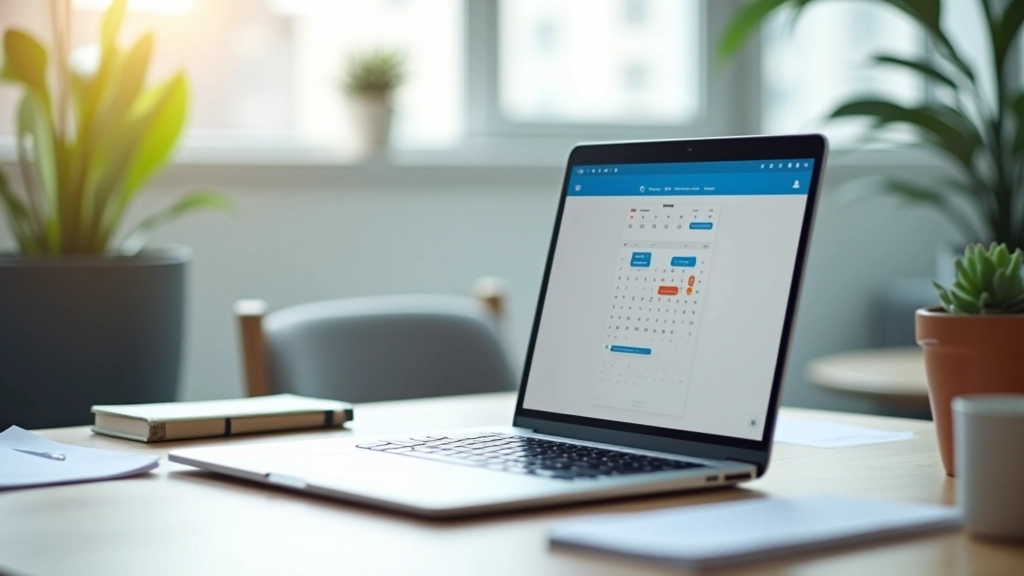
Calendar Integration Basics for Teams
Step-by-step guide to syncing multiple calendars across your team. We'll cover connecting different platforms, handling permissions, and resolving conflicts.
Read More
Reduce scheduling conflicts and missed meetings. Learn how to automate reminders, prep workflows, and handle time zones for distributed teams.
Scheduling meetings manually is tedious. You're juggling time zones, checking availability, sending reminders, and then following up when people forget. It's the kind of work that doesn't add value — it just takes time.
Here's what we've found: Teams that automate their meeting workflows save about 3-4 hours per week. That's time your people can spend on actual work instead of calendar gymnastics. Plus, you get fewer no-shows and more consistent meeting preparation.
3-4 hours weekly per team member
Up to 25% fewer no-shows
Automatic adjustments for distributed teams
Effective meeting automation rests on three core components. You don't need all of them to start, but together they create a complete system that actually works.
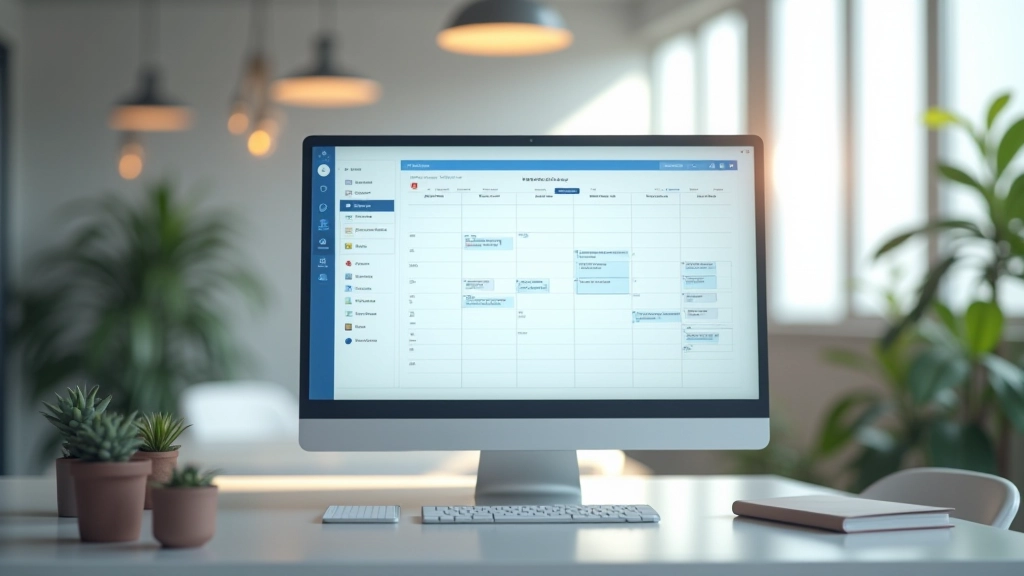
Your system finds the best time slot automatically. Instead of back-and-forth emails, it checks everyone's calendar and suggests times that work. No double-bookings, no conflicts.
Reminders go out at the right moment — not too early that people forget, not too late that they're already doing something else. We've found 24 hours before works best for most meetings.
Before the meeting starts, relevant documents get sent, agendas are confirmed, and participants know exactly what to expect. No surprises on call day.
This guide is informational and educational. Results vary depending on your specific tools, team size, and implementation approach. Always test automation workflows with a small group before rolling out organization-wide. Your actual time savings will depend on your current process and how thoroughly you've set up your automations.

You don't need to be technical to set this up. Most calendar tools now have automation built in — you just need to know what to configure.
Start small. Pick one type of recurring meeting — maybe your weekly team standup or monthly all-hands. Set up the automation for that single meeting. Once it's working smoothly for 2-3 weeks, expand to other meetings.
Here's what we typically see: The first meeting automation saves about 15 minutes per week. That's modest. But by the time you've automated five recurring meetings, you're looking at 1-2 hours saved weekly. It compounds.
If your team's spread across locations — say Hong Kong and London — manual time zone conversion becomes a nightmare. Automation handles this seamlessly.
Your system stores meeting times in a universal format. When you send invites, each person sees the meeting in their local time. Someone in Kowloon sees 2 PM Hong Kong time. Someone in London sees 6 AM UK time. No confusion, no "wait, is that morning or evening for them?"
The reminder system works the same way. Everyone gets their reminder at the same relative time — say 24 hours before — but adjusted to their timezone. So people in different locations all get notified at what feels like a reasonable hour for them.
We've found this single feature reduces no-shows by about 20% for distributed teams. People aren't showing up at the wrong time because the timezone is confusing anymore.


Reminder timing is more important than it sounds. Send them too early and people forget by the time the meeting arrives. Send them too late and people have already committed to something else.
We recommend a two-tier approach. First reminder goes out 24 hours before the meeting — that's far enough ahead that people can plan around it, but close enough that they won't forget. Second reminder goes 15 minutes before — this is your "heads up, we're starting soon" notification.
For distributed teams, the 24-hour reminder is especially valuable. It gives people time to figure out if the timezone works for them or if they need to reschedule. The 15-minute reminder is more about preventing no-shows — it's a quick tap to join the meeting.
Don't go overboard with reminders. Three or more feels spammy. Stick with two, and make sure they're actually useful instead of just noise.