

Calendar Integration Basics for Teams
Step-by-step guide to syncing multiple calendars across your team. We'll cover the fundamentals of calendar integration and best practices for shared calendar management.
Read More
Learn how to create automated workflows that respond to calendar events. From task assignment to email notifications, we'll show you the tools and techniques that work.
Calendar events are the backbone of team coordination. When something lands on your calendar, it's usually important — a meeting, a deadline, a review. But here's the thing: calendars are just information sitting there. They don't do anything by themselves.
That's where triggers come in. We're talking about automated actions that fire when specific calendar events happen. A meeting starts and automatically creates a task. A project deadline approaches and sends a reminder to your Slack channel. It's not magic — it's just smart automation that saves time and keeps your team synchronized.
The teams we've worked with in Kowloon Bay offices have cut their manual coordination work by about 40% once they set up proper calendar workflows. No more forgotten follow-ups. No more "wait, when was that scheduled?" moments.
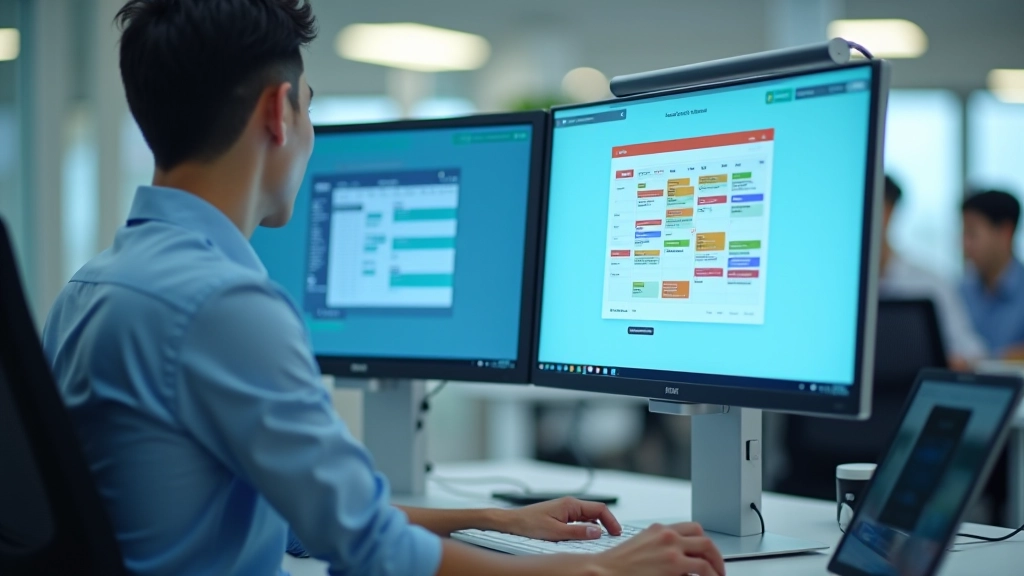
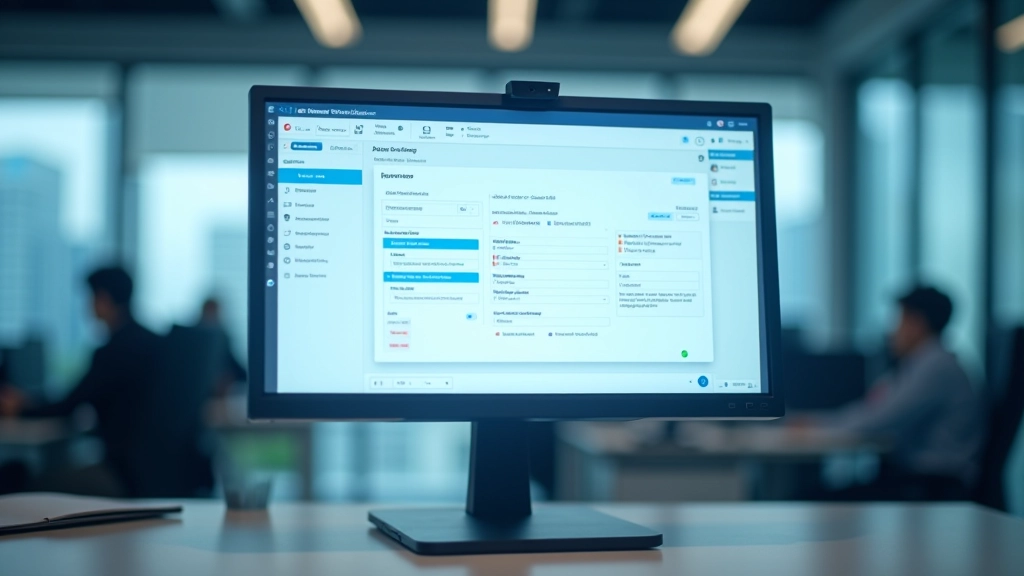
A calendar trigger is straightforward: you set a condition based on a calendar event, and when that condition happens, an action fires. The trigger could be "when a meeting is added to the calendar" or "30 minutes before a scheduled event" or "when a specific event type occurs."
The actions that follow are where you get creative. You might assign a task to someone, send a notification, update a spreadsheet, create a document, or post a message to your team chat. You're essentially bridging your calendar to every other tool your team uses — email, project management software, CRM systems, whatever matters to your workflow.
Event-based triggers fire when something happens to your calendar (event created, event updated, event deleted). Time-based triggers fire at specific moments (15 minutes before start time, 1 hour after end time). Combining both gives you powerful control.
This guide is informational and educational in nature. Specific implementation depends on your tools, team structure, and organizational needs. We recommend testing workflows in a non-critical environment before deploying them company-wide. Requirements and capabilities vary by platform — always check your calendar tool's current documentation for the most up-to-date features.
Start simple. Don't try to automate your entire calendar ecosystem on day one. Pick one workflow that solves an actual pain point your team experiences right now.
What calendar-related task do you repeat every week? Maybe it's sending a meeting prep document before client calls. Or reminding the team about recurring standup times. Pick something that happens at least twice a week.
Most calendar platforms now support automation — Google Calendar through Zapier, Microsoft 365 with Power Automate, or standalone tools like TimeLine Workflows. Pick whatever integrates best with your existing tools.
Set up the trigger and action in your platform's workflow builder. Test it with a dummy calendar event first. Run it for 2-3 weeks with a small group before rolling out to the whole team.
Track whether the automation is actually saving time. Sometimes it doesn't. Maybe the action fires at the wrong time or creates extra noise. Adjust based on what you learn.

Trigger: 2 hours before any calendar event with "Client" in the title. Action: Email your team a pre-written agenda template and attach the client's previous meeting notes. You're not replacing the human element — you're removing the "wait, where did we save those notes?" friction.
Trigger: When an event labeled "Project Deadline" is added to the shared calendar. Action: Create a task in your project management tool, set it to due 3 days before the deadline, and assign it to the project lead. Everyone stays on the same page without needing a separate conversation.
Trigger: When someone blocks "Focus Time" on their calendar. Action: Update their status in your team chat to "In Deep Work" automatically. It's a small thing, but it prevents interruptions and shows respect for focused work time.
Trigger: When an interview slot is added to the recruiting calendar. Action: Send interview prep questions to the candidate, confirm the time with all interviewers, and create a shared document for notes. The candidate gets what they need, your team stays organized.
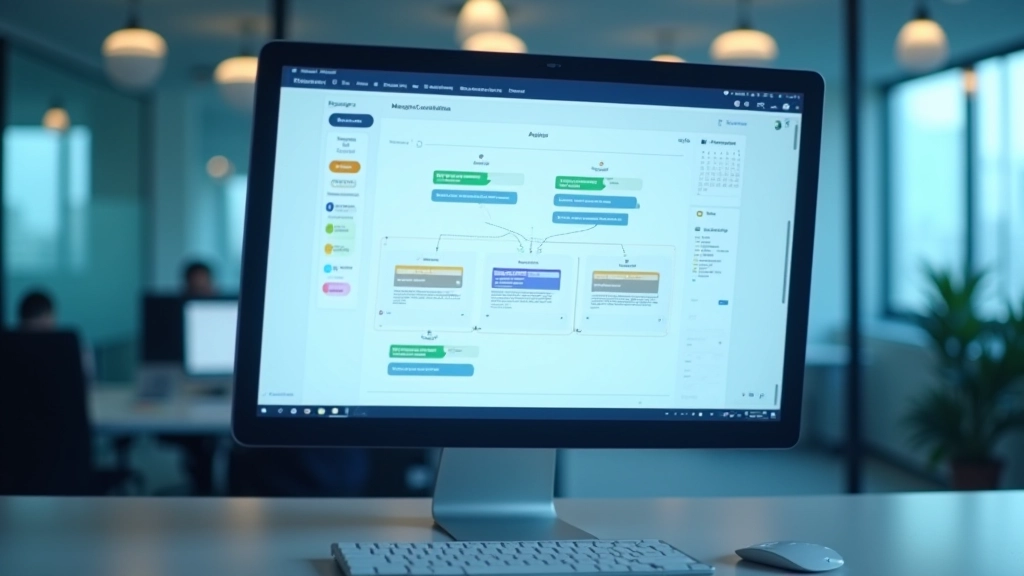
Once you've got the fundamentals working, you can layer in conditional logic. Instead of "every time X happens, do Y," you can do "if X happens AND Y condition is true, then do Z."
For example: "If a meeting is added AND it's labeled 'All-Hands' AND it's scheduled for Friday, then post a reminder to the company Slack channel 24 hours before." That kind of specificity means fewer false alerts and smarter automation.
You can also chain actions together. One trigger fires multiple actions in sequence. A project kickoff meeting gets added to the calendar, which creates a project folder, assigns team members to tasks, generates a kickoff document from a template, and sends out invites to all stakeholders. Instead of someone manually doing five things, it all happens in seconds.
Not everything needs automation. If you're creating workflows for events that happen once a month, you're probably adding complexity without saving real time. Focus on the repetitive stuff.
A trigger that fires on "any meeting" will create noise. Be specific. "Meetings with 'Client' in the title" is better. "Meetings with 'Client' in the title AND more than 5 attendees" is even better.
Deploy to a small group first. Let it run for a couple of weeks. You'll catch timing issues and unintended side effects before they affect your whole team.
Every automation can create alerts and messages. Without careful design, you'll replace calendar management stress with notification stress. Make sure actions only notify when they genuinely matter.
You don't need specialized software to get started. Most calendar platforms now have built-in automation, or you can use integration platforms to connect your calendar to your existing tools.
Google Calendar integrates with Zapier and Google Apps Script for custom automation. Native support for shared calendars makes team workflows straightforward.
Outlook and Teams connect through Power Automate, giving you sophisticated workflow building with minimal coding. Tight integration across Microsoft products.
Works with most calendar platforms and connects to thousands of other tools. Great for teams using mixed tech stacks that need everything talking together.
Purpose-built for calendar automation in corporate environments. Designed for teams managing complex scheduling and coordination needs at scale.



Calendar automation isn't about replacing human judgment. It's about removing the friction from decisions you're already making. You know a client meeting needs prep work — let the system handle the reminders. You know project deadlines matter — let the system create the tasks.
Pick one workflow this week. Something that'll genuinely save your team time or prevent a mistake you've made before. Build it, test it, and see what happens. Most teams find that one successful workflow leads to two or three more because they realize how much mental overhead disappears when calendars actually talk to the rest of your tools.
Check out our complete resource library or get in touch to discuss your specific workflow needs.